This is a WordPress-specific optimization checklist, not a repeat of the general factors covered in What Makes a Business Website Fast? or Core Web Vitals for Business Websites — those apply to any site; this is what's specifically true of a WordPress installation, including the specific ways each fix can go wrong if applied without testing.
Caching layers: page cache vs. object cache
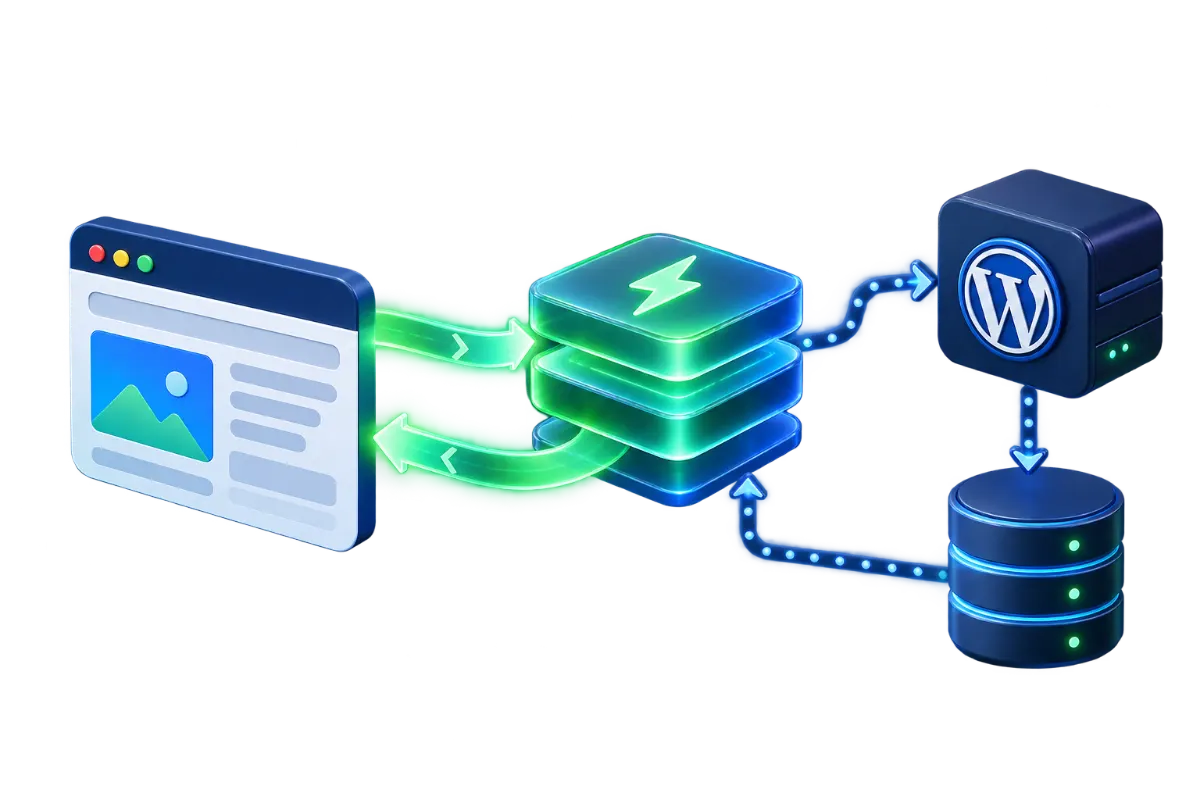
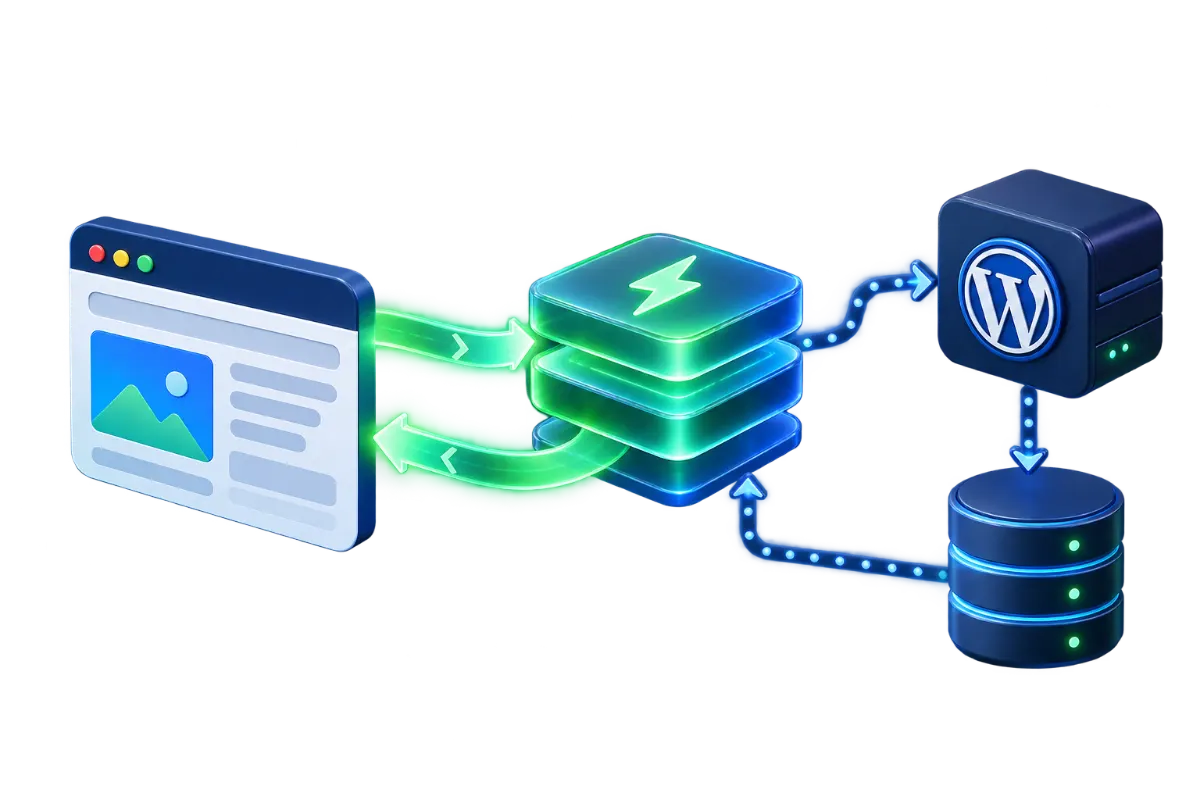
A page cache stores a fully rendered version of a page and serves that directly on repeat requests, skipping WordPress's normal process of querying the database and rebuilding the page from scratch — this is the single highest-impact change for a typical content site, since it turns an expensive dynamic request into a cheap static one. An object cache is different: it stores the results of individual database queries in memory so repeated queries within or across requests don't have to hit the database again, which matters most on database-heavy sites (WooCommerce stores, membership sites, anything with frequent logged-in activity) where full-page caching alone can't apply to most requests. The two solve different problems and are commonly used together rather than as alternatives.
Where caching breaks things
Full-page caching assumes a page looks the same for every visitor, which is false the moment logged-in state, a shopping cart, or any personalized content enters the picture — caching a logged-in dashboard or a cart page for every visitor can show one customer another customer's cart contents, or lock a logged-in admin into a stale cached view of their own site. Any caching setup on a WooCommerce store or membership site needs explicit exclusions for cart, checkout, account and login pages, and testing the actual logged-in and purchase flow after enabling caching — not just checking that the homepage loads fast — is the step that catches this before a customer does.
Image optimization
Unoptimized images are one of the most common, specific causes of a slow WordPress page — a photo uploaded straight from a phone or camera is routinely several megabytes and far larger in pixel dimensions than it will ever be displayed at. Compressing images, serving them in a modern format like WebP, and setting explicit width/height attributes so the browser can reserve layout space before the image loads (avoiding layout shift, part of what Core Web Vitals measures) are all achievable through a plugin or, increasingly, built into WordPress's own media handling and a hosting provider's image pipeline. Resizing to the dimensions the image is actually displayed at matters as much as compression — a 4000px-wide image compressed well but displayed at 800px wide still forces the browser to download far more data than the page needs.
Auditing the plugin stack
Plugin count alone doesn't determine performance impact — a handful of poorly written plugins loading unnecessary scripts and styles on every page, including pages where they're not even used, is a more common real cause of slowness than simply having many plugins installed. A practical audit: list every active plugin, identify what each one actually does and whether it's still needed, and check (using a browser's network tab or a WordPress-specific profiling plugin) which ones are loading assets or running database queries on pages that don't need them. Deactivating and removing genuinely unused plugins, and looking for lighter alternatives to ones found to be unusually heavy, typically recovers more performance than any single caching change — it's addressing the actual source of excess work rather than just caching the result of that excess work.
PHP version currency
WordPress runs on PHP, and newer PHP versions are measurably faster at executing the same code than older ones, independent of anything WordPress-specific — this is one of the few optimization steps that's close to a pure win with minimal downside, provided the site's theme and plugins are confirmed compatible with the newer version first. Running an end-of-life PHP version is also a security exposure, not just a performance one, since it no longer receives security patches — checking the current PHP version (visible in most hosting control panels) and updating it, after confirming compatibility in a staging environment, is a worthwhile one-time task.
Minification and combining files: where it breaks things
Minifying and combining CSS/JavaScript files reduces the number of requests and total file size, but it's the optimization most likely to visibly break a site if applied carelessly — some JavaScript depends on loading in a specific order or depends on a separate file being present as its own request, and combining or reordering files can silently break functionality (a broken menu, a form that stops submitting, an interactive element that stops responding) without throwing an obvious error. The practical rule: enable this one change at a time, not as part of a bundle of simultaneous changes, and manually test the site's actual interactive elements — menus, forms, any JavaScript-driven features — immediately after, not just confirm the page visually loads.
Where a CDN fits in
A CDN (see What Is a CDN and When Does Your Website Need One? for the general mechanics) solves a different problem than the optimizations above: it reduces the network distance between a visitor and the server's static assets, rather than reducing how much work WordPress itself does to generate a page. For a WordPress site with visitors spread across a wide geographic area, pairing page caching with a CDN serving images, CSS and JavaScript from edge locations addresses both the "how expensive is this page to generate" question and the "how far does the response have to travel" question — neither one substitutes for the other, and a site with only a CDN but no page caching still regenerates every dynamic request from scratch at the origin server.
Measuring before and after
Each change above should be measured individually against a baseline, not applied all at once and hoped for the best — enabling five optimizations simultaneously and then finding the site's cart is broken leaves no way to know which change caused it. A consistent measurement approach (the same testing tool, the same page, ideally the same time of day given that real-world conditions vary) before and after each individual change shows what's actually contributing versus what sounded like it should help but didn't move the number meaningfully.
A worked example: a 4-second homepage
A WordPress site's homepage loads in roughly 4 seconds, measured consistently and uncached. Applying page caching alone drops repeat-visit load time substantially, since the expensive database queries and template rendering are skipped entirely for a cached hit — but the first visit for any given cache period is still slow, and a search engine crawler or an infrequent visitor disproportionately experiences that uncached path. Adding image optimization on top addresses that first-visit cost directly, since much of the 4 seconds in a typical case traces to oversized images rather than server processing time alone. A plugin audit that removes two unused plugins loading their own scripts on every page trims further requests that had nothing to do with the actual content being viewed. None of these three changes alone would have closed the full gap — the combination addresses three separate contributors (repeat-request cost, asset weight, unnecessary requests) that a single fix can't touch at once, which is the general pattern worth expecting: meaningful WordPress speed improvement is rarely one change, it's several smaller ones each solving a distinct piece of the total.
An order of operations, not a to-do list
Ranked by typical impact for the effort involved: page caching first (the single biggest win for most content-heavy sites), image optimization second (often the single biggest asset-weight reduction), a plugin audit third (addressing the actual source of excess work rather than just caching around it), then PHP version currency and object caching for database-heavy sites, with minification last and tested most carefully given its specific failure mode. None of this needs to happen in one sitting. Applying changes one at a time, with real testing in between — especially on a store or membership site where a broken cart or login flow has a direct cost — is slower, but it's what actually keeps "faster" from quietly becoming "faster and broken."